Posts

Sections 7 : Color Literal and Image Literal

Image
Use the color picker and images list to set your colors and images directly in the code Xcode has the ability to embed colors and images directly in code. This is done with the help of Color Literals and Image Literals.  Color Literal  A color literal allows you to select colors using a color picker directly from your code. You can either select a color or type in the HEX code. You can also set the opacity. Note : Color literals are great for static colors. For colors that adapt to dark mode, I suggest using colors in the Assets Catalog. Code: let color0 = Color( #colorLiteral ( red : 0.5568627715 , green: 0.3529411852 , blue: 0.9686274529 , alpha: 1 )) ; let color1 = Color( #colorLiteral ( red : 0.3647058904 , green: 0.06666667014 , blue: 0.9686274529 , alpha: 1 )) ; .. Image Literal   Similar to color literals, image literals opens up a GUI from where you can select all the images in your Assets Catalog. You can download free images from https://www.freepik.com/. var...

Sections 6 : SF Symbols | System icons

Image
How to use system icons for Apple platforms with different size, scale and multicolor Apple provides a set of over 2,400 configurable symbols that you can use in your app. They work seamlessly with San Francisco, the system font for macOS, iOS, iPadOS, watchOS, and tvOS. SF Symbols SF Symbols are highly adaptable and can be configured to a number of weights and sizes. Using them is as simple as copying and then, pasting these to your project. To use these, make sure that you've the SF Symbols app installed on your device. Download sf tool here :  https://developer.apple.com/sf-symbols/ .. Compatibility   SF Symbols are compatible with iOS 13 and later, macOS 11 and later, watchOS 6 and later, and tvOS 13 and later. .. Weights   SF Symbols are available in various weights as well as scales.  This allows you to create designs that are easily adaptable. Some of the weight options include thin, light, bold, heavy, etc. The image below shows the weights available. .. Usi...

Sections 5: Online Gradient Generator | Gradient in SwiftUI

Image
Gradient colors make iOS apps much more colorful and vibrant.  SwiftUI gives us a variety of gradient options, all of which can be used in a variety of ways We have 3 types of Gradient effects:  LinearGradient, RadialGradient, AngularGradient.

Sections 4: Shapes and Stroke

Image
How to use shapes like circle, ellipse, capsule, rectangle and rounded rectangle With SwiftUI, you get access to five built-in shapes which are circle, ellipse, rectangle, rounded rectangle and capsule. Shapes vs Stacks  Unlike stacks, shapes take the maximum space.  To color them, you use fill and foregroundColor instead of background. They're great for clipping content and setting a border style. Circle   The Circle allows you to draw a perfect circular shape. The circular shape will have a diameter that's equal to the smaller number between width and height. Circle () .stroke (Color.black, lineWidth: 2) .frame (width: 44, height: 44) .. Ellipse   The Ellipse is like a circle, but without the perfect aspect ratio 1:1. When the width and height are different, it'll fill the space and distort itself. Ellipse () .stroke(Color .black , lineWidth: 2 ) .frame( width : 44 , height: 88 ) .. Rectangle   While most elements in SwiftUI such...

Sections 3: Import Images to Assets Catalog | Read image from asset catalog

Image
Adding Images to Your Xcode Project  Import images into your project, manage their appearances and variations and load them at runtime. Create a New Image Set An image set represents one image that you intend to load at runtime. Each image set contains multiple variations of a single image that you customize to support different device characteristics.  If you have multiple images in your app, you need to create an image set for each image. To create an image set, generate an image asset outside of Xcode, then import it into an asset catalog. The system converts the image format into the most appropriate representation when you build the project. In the Project navigator, select an asset catalog: a file with a .xcassets file extension. Drag an image from the Finder to the outline view . A new image set appears in the outline view, and the image asset appears in a well in the detail area. Rename : Double-click the image set name in the outline view to rename the image set with...

Sections 2: Building layouts with Stack views and Spacer

Image
Overview Individually, HStack, VStack, and ZStack are simple views. HStack positions views in a horizontal line, VStack positions them in a vertical line, and ZStack overlays views on top of one another. Learn how to use HStack, VStack, ZStack with spacing and alignment

Sections 1: Visual Editor in Xcode with Swift UI

Image
Design your layout using the inspector, insert menu and modifiers In this tutorial, we'll take a quick look at how to create a simple layout by only using the visual editing tools and without touching the code. Insert Menu  The Insert Menu ( Cmd  + Shift +  L ) is great for bringing new elements.  You can find a long list of all the controls available in iOS such as button, color picker, date picket, etc.  You can drag and drop an item from the Insert Menu to the Preview or the code. Modifiers   The Inspector doesn't have all the styling options.  For more modifiers, you can go to the Modifiers search field and find properties like background and cornerRadius.

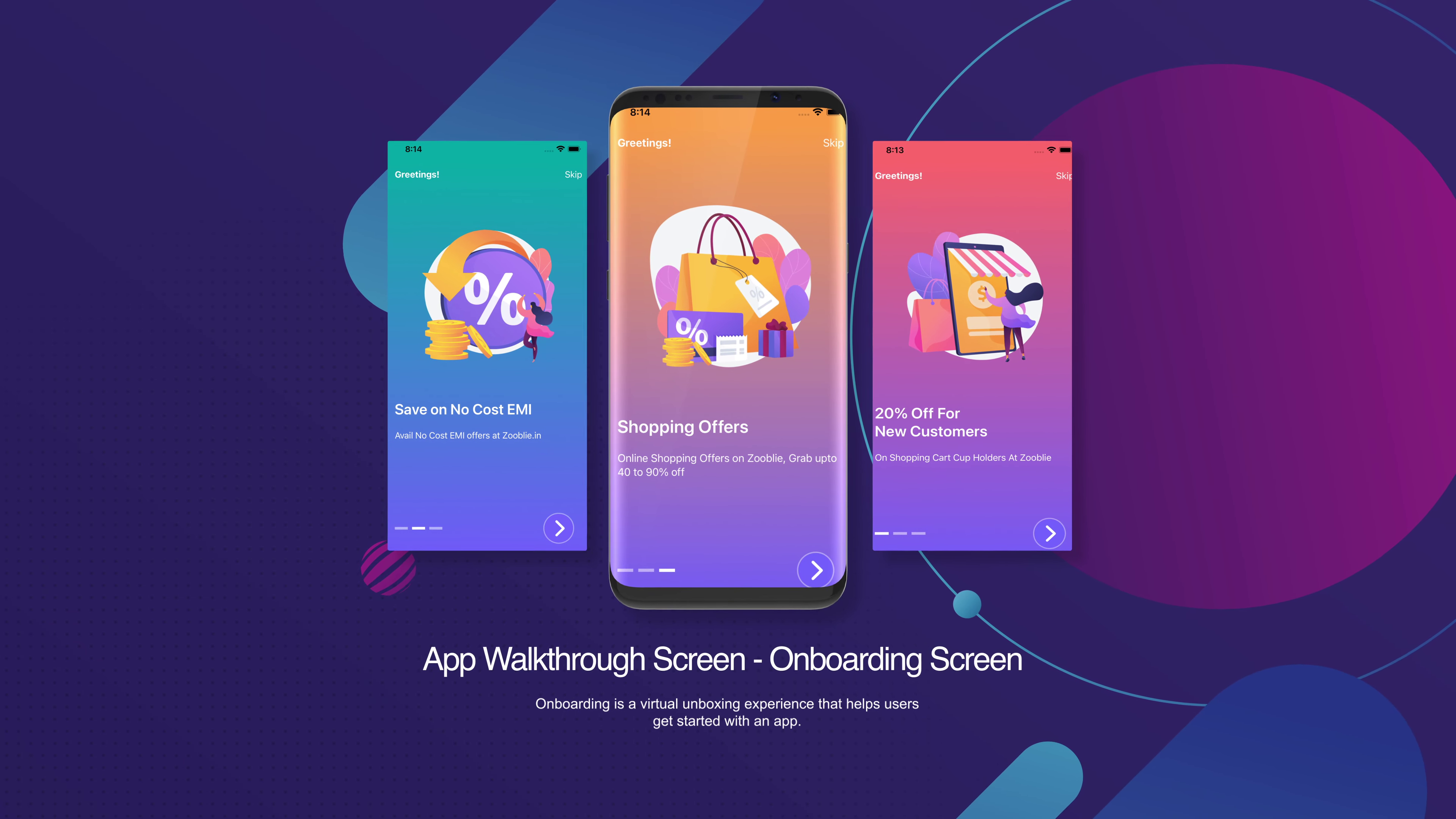
App intro or App Walkthrough or Onboarding with Swift UI coding

Image
SwiftUI 4.0 App Walkthrough Screens - Onboarding Screen 2022. In this article, I'm going to show how to create a Stylish Onboarding Screen/App Walkthrough Screens Using SwiftUI 4.0 Onboarding is a virtual unboxing experience that helps users get started with an app. Swift UI 4.0 code snippets for the IOS app developers: .. GET source code on Github: ..

Privacy Policy

PRIVACY NOTICE Last updated August 14, 2022 This privacy notice for Swift UI coding ("Company," "we," "us," or "our"), describes how and why we might collect, store, use, and/or share ("process") your information when you use our services ("Services"), such as when you: Visit our website at https://swiftuicoding.blogspot.com , or any website of ours that links to this privacy notice Engage with us in other related ways, including any sales, marketing, or events Questions or concerns? Reading this privacy notice will help you understand your privacy rights and choices. If you do not agree with our policies and practices, please do not use our Services. If you still have any questions or concerns, please contact us at boltuix@gmail.com. SUMMARY OF KEY POINTS This summary provides key points from our privacy notice, but you can find out more details about any of these topics by clicking the link following each key point or by usi...

Copyright © 2022 | boltuix.com | Privacy Policy.